Öffentlichen SSH-Schlüssel auf Linux-Server übertragen und für passwortlose Anmeldung nutzen
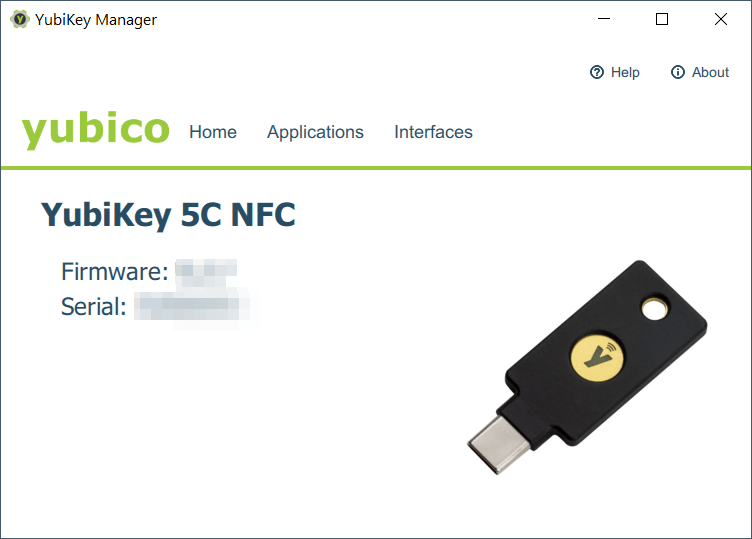
Die Anmeldung an einem Linux-Server ist mit einem YubiKey oder Nitrokey (Affiliate Link  ) ohne die Eingabe eines Passworts möglich. Die Administration wird damit erheblich erleichtert und die Sicherheit erhöht.
Der Komfort ist einfach super! Bei der Anmeldung ist kein Passwort mehr einzugeben, sondern es ist lediglich der am PC angeschlossene YubiKey oder Nitrokey erforderlich und der dazugehörige PIN.
Was ihr dafür benötigt sind lediglich euer exportierter öffentlicher Schlüssel und einen Admin-Zugang zum Server.
Euren öffentlichen Schlüssel müsst ihr in die Datei ~/.ssh/authorized_keys schreiben und schützen.
Anschließend ist die Datei sshd_config noch ein wenig anzupassen.
In die schreibt bzw. kopiert ihr einfach in eine neue Zeile euren öffentlichen Schlüssel, gerne mit einem Kommentar für eine bessere Zuordnung. Kommentare werden am Zeilenanfang mit einem # begonnen.
ssh-rsa AAAAB3NzaC1yc2EAAAADAQABAAACAQDPFbvbwFIjSxU6o7lgr7xEaEbmKARa/1JaqzsMU1WLh/i519VQn/BN1BVHMTjxw2I/hNwG7YGpBUuhxAdiK53l/M...........
Ein paar hilfreiche Einstellungen, die die Administration der Linux-Server im Umgang mit SSH und einem YubiKey / Nitrokey etwas erleichtern möchte ich hier noch kurz aufzeigen.
SSH-Anmeldung nur für definierte Gruppe erlauben
Die Anmeldung mit SSH lässt sich auf eine definierte Gruppe einschränken. Das ist sinnvoll, wenn viele Benutzer auf einem System angelegt sind und man den Zugriff auf das Terminal einschränken möchte, z.B. nur auf die Administratoren.
Zu diesem Zweck legen wir eine neue Gruppe für den SSH-Zugriff an
sudo groupadd -r sshadmin
Die bereits angelegten Benutzer auf dem Linux-System lassen sich mit dem Befehl der Gruppe hinzufügen.
sudo usermod -a -G sshadmin BENUTZERNAME
Damit auch wirklich nur diese Gruppe eine SSH-Sitzung starten darf, muss das in der sshd_config mitgeteilt werden.
Tragt dazu in der Datei die folgende Zeile ein:
sudo nano /etc/ssh/sshd_config
#Laesst nur Mitglieder der Gruppe "sshadmin" eine SSH-Verbindung herstellen
AllowGroups sshadmin
Speichert die Änderung und startet den SSH-Daemon neu.
sudo systemctl restart sshd.service
Achtung
Ab diesen Zeitpunkt ist der Zugriff per SSH auch wirklich nur noch für die Mitglieder der Gruppe erlaubt. Alle anderen werden abgewiesen!
SSH-Zugriff nur noch mir YubiKey / Nitrokey erlauben
Damit nur noch die Anmeldung mit einem Schlüsselpaar erlaubt ist, sind noch ein paar Einträge in der sshd_config zu erstellen.
Die unten gezeigt sshd_config erhebt keinen Anspruch auf Vollständigkeit und ist nur ein Ausschnitt. Prüft selbst noch einmal die Einträge, bevor ihr die Datei auf einem System verwendet!
Note
Eine vollständige sshd_config ist im Repository https://codeberg.org/sst/ansible-server-maintenance abgelegt.
Arbeitet zur Sicherheit mit einer offenen SSH-Sitzung, die nicht geschlossen wird. Diese aktive Sitzung ist normalerweise von einem Neustart des SSH-Daemons nicht betroffen.
Nach wie vor funktioniert der normale Login mit der Tastatur mit Benutzername und Passwort direkt am Server.
###
# UsePAM
###
# Set this to 'yes' to enable PAM authentication, account processing,
# and session processing. If this is enabled, PAM authentication will
# be allowed through the ChallengeResponseAuthentication and
# PasswordAuthentication.  Depending on your PAM configuration,
# PAM authentication via ChallengeResponseAuthentication may bypass
# the setting of "PermitRootLogin without-password".
# If you just want the PAM account and session checks to run without
# PAM authentication, then enable this but set PasswordAuthentication
# and ChallengeResponseAuthentication to 'no'.

UsePAM yes


###
# KbdInteractiveAuthentication
###
# Specifies whether to allow keyboard-interactive authentication.
# All authentication styles from login.conf(5) are supported.
# The default is yes.  The argument to this keyword must be yes or no.
# ChallengeResponseAuthentication is a deprecated alias for this.

KbdInteractiveAuthentication no


###
# X11Forwarding
###
# Specifies whether X11 forwarding is permitted. The argument must be ''yes'' or ''no''.
# The default is ''no''.

X11Forwarding no


###
# PrintMotd
###
# Specifies whether sshd(8) should print /etc/motd when a user logs in interactively.
# (On some systems it is # # also printed by the shell, /etc/profile, or equivalent.)
# The default is ''yes''.

PrintMotd no


###
# LoginGraceTime
###
# The LoginGraceTime parameter specifies the time allowed for successful
# authentication to the SSH server. The longer the Grace period is the
# more open unauthenticated connections can exist. Like other session controls
# in this session the Grace Period should be limited to appropriate organizational
# limits to ensure the service is available for needed access.

LoginGraceTime 60


####
#ClientAliveInterval
###
# Sets a timeout interval in seconds after which if no data has been received from
# the client, sshd(8) will send a message through the encrypted channel to request
# a response from the client. The default is 0, indicating that these messages will
# not be sent to the client.

ClientAliveInterval 300


##
# ClientAliveCountMax
##
# Sets the number of client alive messages which may be sent without sshd(8) receiving
# any messages back from the client. If this threshold is reached while client alive
# messages are being sent, sshd will disconnect the client, terminating the session.
# It is important to note that the use of client alive messages is very different from
# TCPKeepAlive. The client alive messages are sent through the encrypted channel and
# therefore will not be spoofable. The TCP keepalive option enabled by TCPKeepAlive is spoofable.
# The client alive mechanism is valuable when the client or server depend on knowing
# when a connection has become unresponsive.

ClientAliveCountMax 3


###
# StrictModes
###
# Specifies whether sshd(8) should check file modes and ownership of the user's files
# and home directory before accepting login. This is normally desirable because novices
# sometimes accidentally leave their directory or files world-writable.
# The default is ''yes''.

StrictModes yes


###
# AllowTcpForwarding
###
# Specifies whether TCP forwarding is permitted. The default is ''yes''.
# Note that disabling TCP forwarding does not improve security unless users are also
# denied shell access, as they can always install their own forwarders.
# Possible values for this option are yes or all to allow all TCP forwarding,
# no to prevent all TCP forwarding, local to allow local forwardings, and remote to allow remote forwardings.
# https://www.ssh.com/academy/ssh/tunneling-example

AllowTcpForwarding no


###
# PermitEmptyPasswords
###
# When password authentication is allowed, it specifies whether the server allows
# login to accounts with empty password strings.
# The default is ''no''.

PermitEmptyPasswords no


###
# SSH Login Only For Group sshadmin
###
# Only members of goup "sshadmin" are allowed to establish a SSH connection to this server

AllowGroups sshadmin


###
# PasswordAuthentication
###
# Specifies whether password authentication is allowed. The default is ''yes''.
# no = not required, SSH login is now only possible with SSH key
# yes = required, SSH login is possible with password

PasswordAuthentication no


###
# PubkeyAuthentication
###
# Specifies whether public key authentication is allowed. The default is ''yes''.
# Note that this option applies to protocol version 2 only.

PubkeyAuthentication yes


###
# PubkeyAuthOptions
###
# The touch-required option causes public key authentication using a FIDO authenticator
# algorithm (i.e. ecdsa-sk or ed25519-sk) to always require the signature to attest that
# a physically present user explicitly confirmed the authentication
# (usually by touching the authenticator).

PubkeyAuthOptions verify-required


###
# HostbasedAuthentication
###
# Specifies whether rhosts or /etc/hosts.equiv authentication together with successful
# public key client host authentication is allowed (host-based authentication).
# This option is similar to RhostsRSAAuthentication and applies to protocol version 2 only.
# The default is ''no''.

HostbasedAuthentication no


###
# PrintLastLog
###
# Specifies whether sshd(8) should print the date and time of the last user login when a
# user logs in interactively. The default is ''yes''.

PrintLastLog yes


###
# TCPKeepAlive
###
# Specifies whether the system should send TCP keepalive messages to the other side.
# If they are sent, death of the connection or crash of one of the machines will be
# properly noticed. However, this means that connections will die if the route is down
# temporarily, and some people find it annoying. On the other hand, if TCP keepalives
# are not sent, # sessions may hang indefinitely on the server, leaving ''ghost''
# users and consuming server resources.

TCPKeepAlive yes


###
# PermitRootLogin
###
# Specifies whether root can log in using ssh(1).  The
# argument must be yes, prohibit-password,
# forced-commands-only, or no.  The default is
# prohibit-password.

PermitRootLogin no


##
# MaxAuthTries
##
# Specifies the maximum number of authentication attempts permitted per connection.
# Once the number of failures reaches half this value, additional failures are logged.
# The default is 6.

MaxAuthTries 4


##
# PermitUserEnvironment
##
# Specifies whether ~/.ssh/environment and environment= options in ~/.ssh/authorized_keys
# are processed by sshd(8). Valid options are yes, no or a pattern-list specifying which
# environment variable names to accept (for example "LANG,LC_*").
# The default is no.
# Enabling environment processing may enable users to bypass access restrictions in some
# configurations using mechanisms such as LD_PRELOAD.

PermitUserEnvironment no


##
# MACs
##
#Specifies the available MAC (message authentication code) algorithms. The MAC algorithm
#is used for data integrity protection. Multiple algorithms must be comma-separated.
#If the specified list begins with a ‘+’ character, then the specified algorithms will
#be appended to the default set instead of replacing them.
#If the specified list begins with a ‘-’ character, then the specified algorithms
#(including wildcards) will be removed from the default set instead of replacing them.
#If the specified list begins with a ‘^’ character, then the specified algorithms
#will be placed at the head of the default set.

MACs hmac-sha2-512-etm@openssh.com,hmac-sha2-256-etm@openssh.com,umac-128-etm@openssh.com


##
# KexAlgorithms
##
# Specifies the available KEX (Key Exchange) algorithms. Multiple algorithms must be
# comma-separated. Alternately if the specified list begins with a ‘+’ character, then the
# specified methods will be appended to the default set instead of replacing them.
# If the specified list begins with a ‘-’ character, then the specified methods
# (including wildcards) will be removed from the default set instead of replacing them.
# If the specified list begins with a ‘^’ character, then the specified methods will be
# placed at the head of the default set.

#KexAlgorithms curve25519-sha256,curve25519-sha256@libssh.org,diffie-hellman-group16-sha512,diffie-hellman-group18-sha512,diffie-hellman-group-exchange-sha256
KexAlgorithms sntrup761x25519-sha512@openssh.com,curve25519-sha256,curve25519-sha256@libssh.org,diffie-hellman-group16-sha512,diffie-hellman-group18-sha512,ecdh-sha2-nistp256,ecdh-sha2-nistp384


##
# Ciphers - Encryption algorithms
##
# Specifies the ciphers allowed.  Multiple  ciphers must be commaseparated.
# If the specified list begins  with a `+'  character, then  the specified
# ciphers will be appended to the default set instead of replacing them.
# If the specified list begins  with a `-' character, then the specified ciphers
# (including wildcards) will be removed from the default set instead of replacing them.
# If the specified list begins with a `^' character, then the  specified ciphers will
# be placed at the head of the default set.

Ciphers aes256-gcm@openssh.com,aes128-gcm@openssh.com,chacha20-poly1305@openssh.com


##
# MaxStartups
##
# Specifies the maximum number of concurrent unauthenticated connections to the SSH daemon.
# Additional connections will be dropped until authentication succeeds or the LoginGraceTime
# expires for a connection. The default is 10:30:100.

maxstartups 10:30:60

##
# MaxSessions
##
# Specifies the maximum number of open shell, login or subsystem (e.g. sftp) sessions permitted
# per network connection. Multiple sessions may be established by clients that support connection multiplexing.
# Setting MaxSessions to 1 will effectively disable session multiplexing, whereas setting it to 0 will prevent
# all shell, login and subsystem sessions while still permitting forwarding. The default is 10.

MaxSessions 10


#####################
# SFTP - OPTIONAL
#####################

# This section must be placed at the very end of sshd_config

###
# Subsystem
###
# Enable to built-in implementation of SFTP
# Configures an external subsystem (e.g. file transfer daemon).
# Arguments should be a subsystem name and a command (with optional arguments)
# to execute upon subsystem request.
# The command sftp-server implements the SFTP file transfer subsystem.
# Alternately the name internal-sftp implements an in-process SFTP server.
# This may simplify configurations using ChrootDirectory to force a different filesystem root on clients.
# By default no subsystems are defined.

Subsystem sftp internal-sftp


###
# Match Group
###
# Only members of this group are allowed to connect via SFTP

Match Group sftpexchange


###
# PermitTunnel
###
# Specifies whether tun(4) device forwarding is allowed.
# The argument must be yes, point-to-point (layer 3), ethernet (layer 2), or
# no. Specifying yes permits both point-to-point and ethernet.
# The default is "no".

PermitTunnel no


###
# LogLevel
###
# Gives the verbosity level that is used when logging messages from sshd(8).
# The possible values are:QUIET,FATAL,ERROR, INFO, VERBOSE, DEBUG, DEBUG1, DEBUG2, and DEBUG3.
# The default is INFO. DEBUG and DEBUG1 are equivalent. DEBUG2 and  DEBUG3
# each specify higher levels of debugging output. Logging with a DEBUG level
# violates the privacy of users and is not recommended.

#LogLevel VERBOSE
Anschließend ist der SSH-Daemon neu zu starten
sudo systemctl restart sshd.service
Einen neuen Benutzer anlegen mit Recht für SSH-Zugriff
Ein neuer Benutzer lässt sich auf der Konsole einfach anlegen und auch gleich der sshadmin-Gruppe hinzufügen.
Des Weiteren wird der Benutzer auch gleich das Recht gewährt sudo zu verwenden.
Für einen Raspberry Pi sieht das dann so aus:
sudo adduser neuerbenutzer
sudo usermod -a -G sshadmin neuerbenutzer
sudo usermod -a -G sudo neuerbenutzer
sudo usermod -a -G users neuerbenutzer
Anschließend müsst ihr darauf achten, dass für den neuen Benutzer der öffentliche Schlüssel für die Anmeldung in der authorized_keys hinterlegt wird.
Fehlt dort der Schlüssel, funktioniert die Anmeldung nicht.
Benutzer deaktivieren oder löschen
Ab und zu sind Benutzer auf einem System schnell zu deaktivieren, um einen Zugriff auf ein System komplett zu verhindern. Auf der Konsole kein Problem!
sudo usermod -L pi
sudo passwd -l pi
Alternativ könnt ihr den Benutzer auch komplett löschen. Da müsst ihr aber wirklich sicher sein, dass eine Löschung wirklich sinnvoll ist. Die erste Wahl ist eine Deaktivierung um auch eine Nachvollziehbarkeit zu gewährleisten (siehe Log Files)
killall -u pi
userdel -r pi
Passworteingabe zum Ausführen von sudo-Befehlen deaktivieren
Die Anmeldung wurde so konfiguriert, dass kein Passwort mehr erforderlich ist, sondern nur noch ein YubiKey / Nitrokey (Affiliate Link ) vom System akzeptiert wird. Trotzdem muss vor dem Ausführen der sudo-Befehle noch immer das Passwort eingegeben werden, was recht umständlich ist. Schließlich hat sich der berechtigte Benutzer schon am System legitimiert, mit einer sicheren Anmeldung, seinem YubiKey / Nitrokey. Zudem wurde auch nur einem ausgewählten Kreis an Benutzern der Zugriff via SSH gewährt.
Möchte man die Passworteingabe für die sudo-Befehle deaktivieren muss die Datei /etc/sudoers angepasst werden. Das Ändern funktioniert nur mit einem speziellen Editor, dem viduso.
sudo visudo
In der Datei sucht ihr den bestehenden Eintrag und ersetzt diesen.
  # aus kommentieren von
  %sudo  ALL=(ALL:ALL) ALL

  # einfügen von
  %sudo  ALL=(ALL) NOPASSWD:ALL
Nach der Anpassung ist die Eingabe des Passworts zum Ausführen von "sudo-Befehlen" nicht mehr notwendig.
Weitere Vereinfachungen bei der SSH-Anmeldung
👉 SSH-Verbindungen verwalten mit Aliases
👉 SSH-Verbindung und Jump Host
Gib mir gerne einen Kaffee ☕ aus 😀
Gib mir gerne einen Kaffee ☕ aus !
Wenn dir meine Beiträge gefallen und geholfen haben, dann kannst du mir gerne einen Kaffee ☕️ ausgeben.
 •
• 
Bitcoin Address:

bc1qfuz93hw2fhdvfuxf6mlxlk8zdadvnktppkzqzj

Weitere Möglichkeiten mich zu unterstützen findest du 👉 hier
Follow Me